Supercharging Your Network Security: Integrating 24Online and Palo Alto Networks for Advanced Control
In today's complex network environments, strong security and efficient traffic management are paramount. Many organizations rely on robust firewalls like Palo Alto Networks for advanced threat protection and granular policy enforcement. However, when it comes to dynamic user identity management, flexible captive portals, and precise bandwidth control at the edge, a specialized solution like 24Online can offer significant advantages.
Imagine a scenario where your security firewall isn't just protecting against threats, but also seamlessly integrating with your identity and access management system, allowing for advanced intelligent traffic shaping and a smooth user experience from the moment they connect. This isn't just a dream; it's a reality achievable by integrating 24Online with Palo Alto Networks, leveraging the power of APIs.
The Power Duo: 24Online and Palo Alto Networks
Palo Alto Networks is a leader in next-generation firewalls, providing unparalleled visibility into applications, users, and content. Its capabilities include intrusion prevention, advanced threat protection, URL filtering, and application control.
24Online excels in identity and access management, especially for diverse user bases, offering:
● Flexible Captive Portals: Customized login experiences for employees, guests, and contractors.
● Dynamic Bandwidth Management: Granular control over user and application bandwidth, ensuring fair usage and preventing network congestion.
● AAA (Authentication, Authorization, Accounting) Services: Robust authentication methods including Active Directory integration, OTP, and social logins.
● Deep User Analytics: Insights into user activity and network consumption.
The Integration Advantage: Beyond Basic Coexistence
While 24Online and Palo Alto Networks can certainly co-exist in a network, the real magic happens when they are integrated through APIs. This allows for a dynamic exchange of information, leading to:
1. Context-Aware Security Policies:
○ How it works: When a user authenticates through 24Online's captive portal, 24Online can push this user's identity and associated group information to the Palo Alto Networks firewall via API.
○ The benefit: The Palo Alto firewall can then apply security policies and access rules based on the actual authenticated user rather than just an IP address. This means a policy can say "Allow HR Manager John Doe access to the ERP system" instead of "Allow IP range 192.168.10.0/24 access to the ERP system," significantly enhancing security and simplifying policy management.
2. Enhanced Traffic Shaping and QoS:
○ How it works: 24Online can act as a "Man-in-the-Middle" or an intelligent policy enforcement point right at the edge of your network. After a user authenticates and their identity is verified, 24Online applies precise bandwidth caps and QoS policies based on their profile. This happens before traffic hits the core network or the firewall.
○ The benefit: This proactive traffic shaping prevents individual users or groups from saturating your internet links or overwhelming your firewall's processing capabilities. Imagine giving your critical business applications priority bandwidth while limiting recreational browsing, all enforced seamlessly based on user identity provided by 24Online.
3. Unified Captive Portal and Security Workflow:
○ How it works: Users first encounter 24Online's customizable captive portal for authentication. Once authenticated, 24Online informs Palo Alto Networks of the user's identity. From that point on, both systems work in tandem – 24Online managing bandwidth and access based on its policies, and Palo Alto Networks providing threat protection and deeper application control based on the user identity it received.
○ The benefit: A smooth and branded onboarding experience for users, combined with robust, identity-aware security from the firewall. This eliminates the need for redundant authentication or complex policy setups across disparate systems.
A Practical Scenario: Guest Wi-Fi with Enterprise-Grade Security
Consider a common scenario: a corporate guest Wi-Fi network.
1. Guest Connects: A guest connects to the Wi-Fi.
2. 24Online Captive Portal: They are redirected to a branded 24Online captive portal where they can register (e.g., via OTP, sponsor approval, or social media).
3. Identity Shared (API): Once authenticated by 24Online, their identity (e.g., "Guest-User-123") is pushed to the Palo Alto Networks firewall.
4. Policy Enforcement:
○ 24Online applies a specific bandwidth limit (e.g., 20 Mbps) to this guest user and ensures they only access the internet.
○ Palo Alto Networks then applies its security policies, such as blocking known malicious sites, filtering inappropriate content, and preventing any access to internal corporate resources, specifically for "Guest-User-123."
This integrated approach means you're not just providing internet access; you're providing secure, controlled, and managed internet access, with full visibility and policy enforcement from two industry-leading solutions working in harmony.
Conclusion
Integrating 24Online with Palo Alto Networks through API allows organizations to create a truly intelligent and secure network infrastructure. You gain the best of both worlds: 24Online's dynamic identity and access management with flexible captive portals and precise bandwidth control, combined with Palo Alto Networks' industry-leading next-generation firewall capabilities. This synergy ensures a secure, efficient, and user-friendly network experience for everyone.
Intergration Steps with 24online and PANW User-id
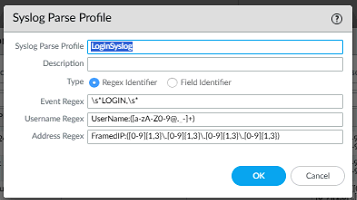
Step 1: Device> User Identification> User Mapping > User-ID agent> Syslog Filter> Add Syslog Parse Profile
Steps for Login
Event Regex: \s*LOGIN\s*
Username Regex: UserName:([A-Za-z0-9@._-]+)
Address Regex: FramedIP:([0-9]{1,3}\.[0-9]{1,3}\.[0-9]{1,3}\.[0-9]{1,3})
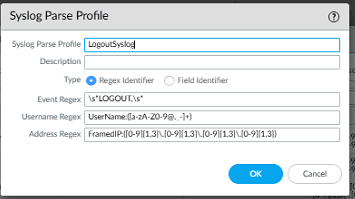
Follow same steps for Logout
Event Regex: \s*LOGOUT\s*
Username Regex: UserName:([A-Za-z0-9@._-]+)
Address Regex: FramedIP:([0-9]{1,3}\.[0-9]{1,3}\.[0-9]{1,3}\.[0-9]{1,3})
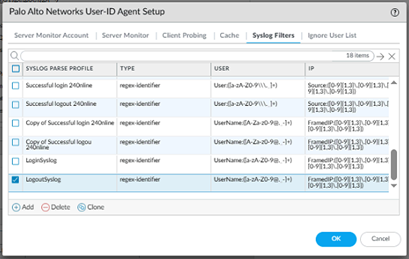
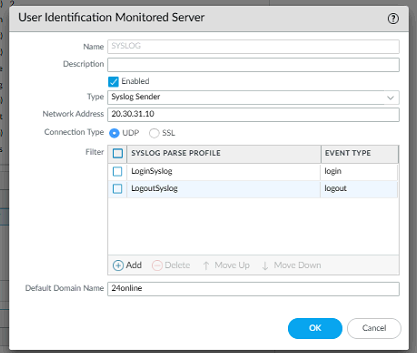
Step 2: Device> User Identification> User Mapping > Server monitoring > Add new and change type> Syslog sender> Both PARSE Profile Login and Logout
Step 3: Configure policy based on user/group wise.

Purpose
The integration allows the Palo Alto Networks firewall to:
• Identify users by their authenticated username rather than just IP address
• Apply user-based security policies and access control
• Generate user-specific traffic logs and reports
• Track user activity across the network
Configuration Steps
24online System Configuration
Step 1: Configure Authentication Server
Configure the LDAP authentication server to enable centralized user management.
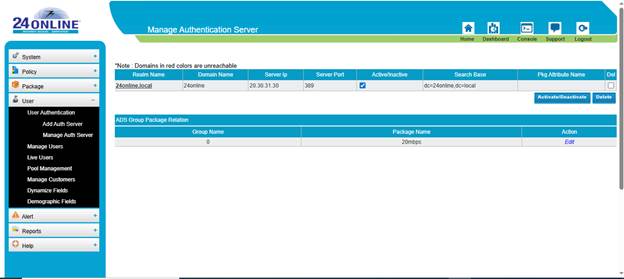
1. Navigate to Package > User > Manage Auth Server
2. Configure the authentication realm with the following parameters:
|
Parameter |
Value |
|
Realm Name |
24online.local |
|
Domain Name |
24online |
|
Server IP |
20.30.31.30 |
|
Server Port |
389 |
Figure 1: 24online Manage Authentication Server Interface
Step 2: Configure Syslog Data Pusher
Configure the syslog data pusher to send authentication events to the Palo Alto Networks firewall.
1. Navigate to System > Syslog Data Pusher
2. Click Add to create new syslog destinations
3. Configure two syslog pushers with the following settings:
|
Parameter |
Pusher 1 |
Pusher 2 |
Description |
|
IP Address |
20.30.31.1 |
20.30.31.1 |
PA-VM firewall |
|
Port |
514 |
514 |
Standard syslog |
|
Type |
Syslog |
Syslog |
Protocol type |
|
Format |
Login |
Logout |
Event types |
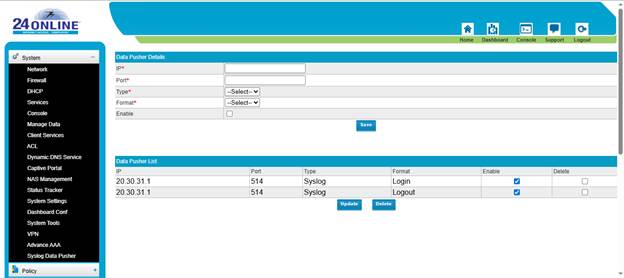
Figure 2: 24online Syslog Data Pusher Configuration
Palo Alto Networks Firewall Configuration
Step 3: Configure Syslog Server Profile
Configure the firewall to receive and send syslog messages.
1. Navigate to Device > Server Profiles > Syslog
2. Click Add to create a new syslog server profile
3. Configure with the following settings:
|
Parameter |
Value |
|
Profile Name |
24online |
|
Server Name |
24online |
|
Syslog Server |
20.30.31.10 |
|
Transport |
UDP |
|
Port |
514 |
|
Format |
BSD |
|
Facility |
LOG_USER |
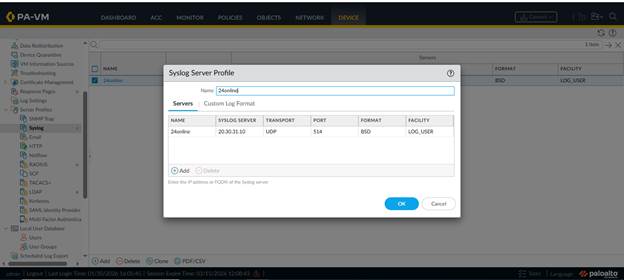
Figure 3: PA-VM Syslog Server Profile Configuration
Step 4: Configure User-ID Agent Syslog Filters
Configure syslog parsing filters to extract user information from incoming syslog messages.
1. Navigate to Device > User Identification > User-ID Agent Setup
2. Click on the Syslog Filters tab
3. Create a syslog parse profile with regex-identifier type
4. Select LoginSyslog filter to parse login events
5. Configure the IP field to extract IP addresses from syslog messages
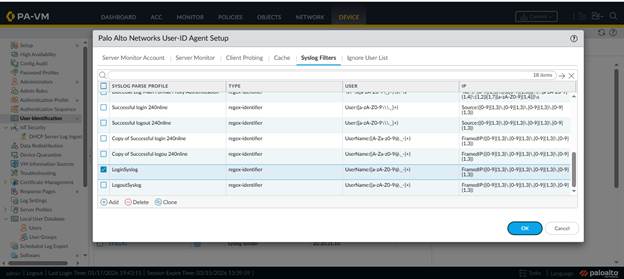
Figure 4: PA-VM User-ID Agent Syslog Filters Configuration
Step 5: Configure Network Interfaces
Ensure the management interface is properly configured to receive syslog messages.
1. Navigate to Network > Interfaces
2. Configure the management interface (ethernet1/1) with IP address 20.30.31.1/24
3. 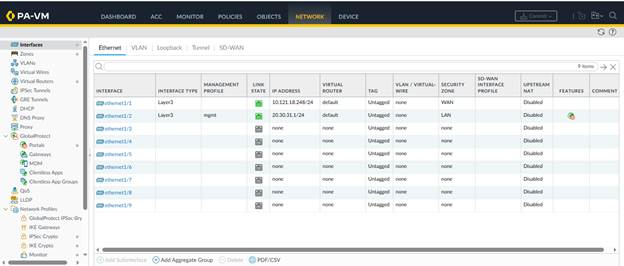 Ensure the management profile allows
syslog traffic
Ensure the management profile allows
syslog traffic
Figure 5: PA-VM Network Interface Configuration
Verification and Testing
Verify Syslog Communication
After configuration, verify that syslog messages are being properly exchanged between 24online and the Palo Alto Networks firewall.
Check Syslog Output
• Access the syslog web interface at the configured URL
• Verify authentication messages are being logged with format: Username, FramedIP, NasIP, CallingStationID, AuthenticationStatus, ReplyMessage
• Example log entry shows successful authentication with user details and IP mapping

Figure 6: Syslog Authentication Messages in Browser
Verify User-IP Mapping on Firewall
• Log into the Palo Alto Networks firewall CLI
• Execute the command: show user ip-user-mapping all
• Verify that user accounts are mapped to their IP addresses
• Check idle and max timeout values (typically 2631-2633 seconds)
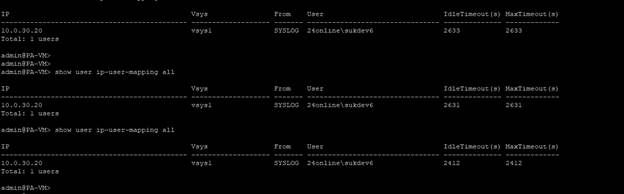
Figure 7: CLI Output Showing User-IP Mappings
Monitor Traffic Logs
• Navigate to Monitor > Logs > Traffic on the firewall web interface
• Verify that traffic logs show username in the SOURCE USER field
• Traffic should be associated with 24online usernames (e.g., 24online\sukdev6, 24online\sukdev7)
• Confirm traffic is being logged from LAN to WAN zones with proper source IP addresses
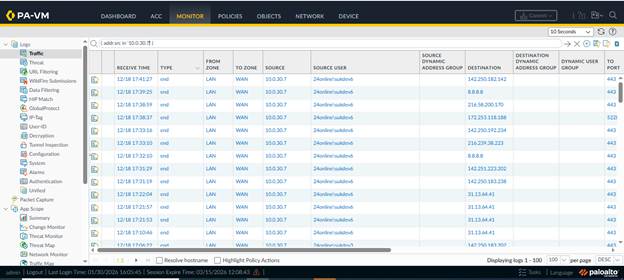
Figure 8: PA-VM Traffic Logs with User Information (Source: 10.0.30.7)
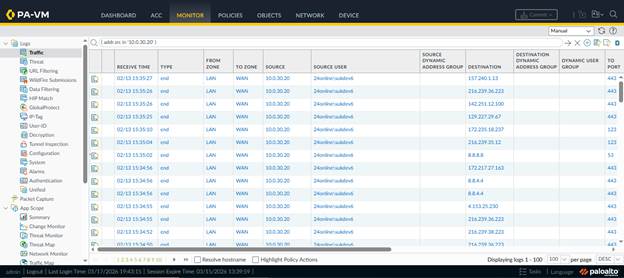
Figure 9: PA-VM Traffic Logs with User Information (Source: 10.0.30.20)
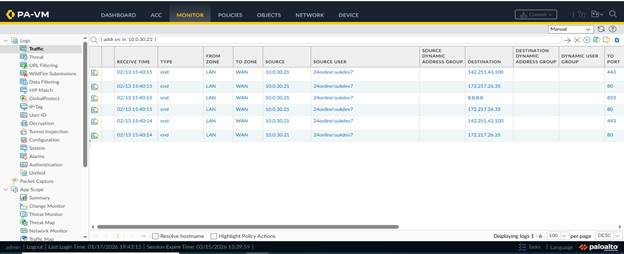
Figure 10: PA-VM Traffic Logs with User sukdev7 (Source: 10.0.30.21)
Test User Authentication Flow
1. Access the 24online client login portal
2. Authenticate with test credentials (e.g., sukdev6@24online.local)
3. Verify successful authentication in 24online Manage Live Users section
4. Check that the user appears in the Palo Alto Networks User-ID mapping
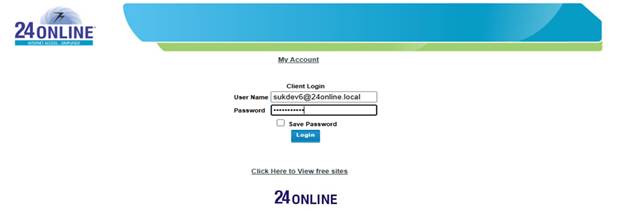 Figure 11: 24online Client Login Portal
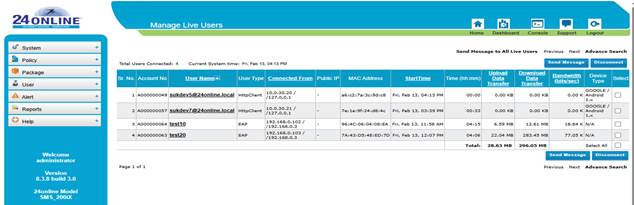
Figure 12: 24online Manage Live Users Dashboard